This article will guide you on changing the layout of the list view of your blog.
Login to myRealPage:
Click here to visit this help article to log in to your account.
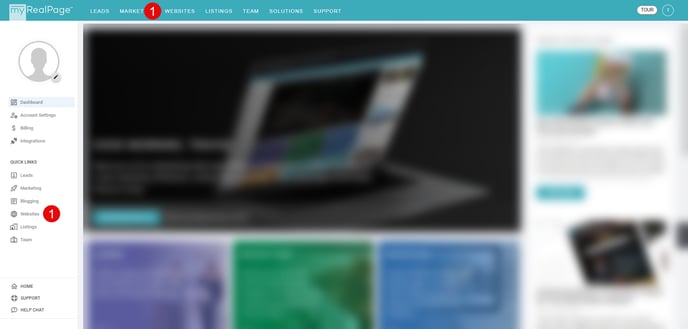
1 - Navigate to "Websites" tab:
- Click on "Websites" to manage your website.
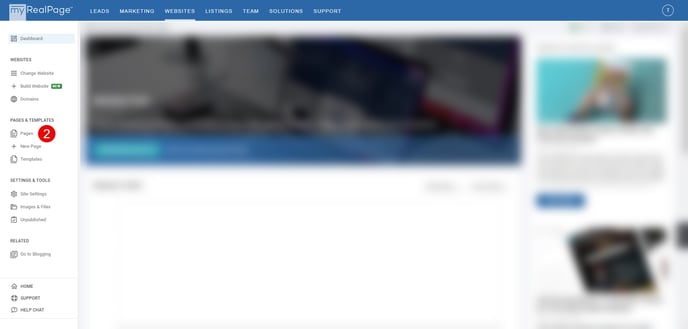
2 - Click on "Pages" on the left hand sidebar:
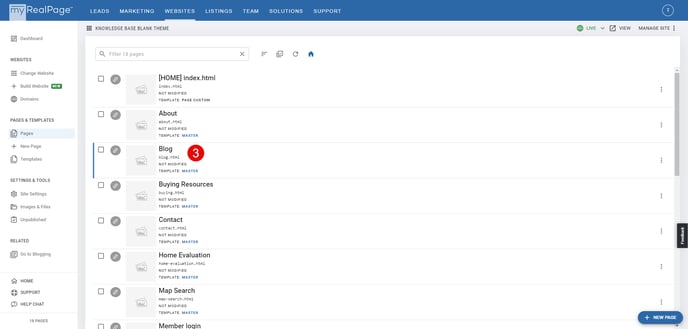
3 - Click on the "Blog" page (or whichever page you have a blog block on):
4 - Click on "EDIT" on the bottom toolbar:
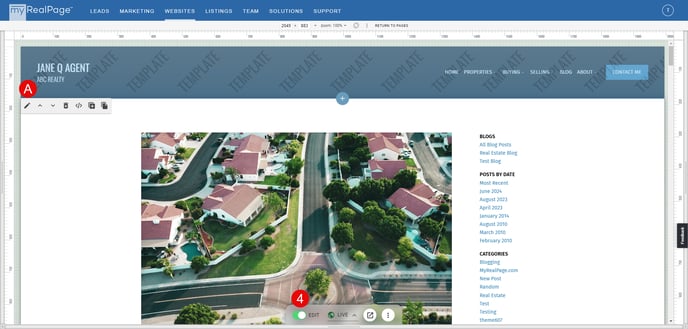
- A. Edit Block: Once in edit mode, select the pencil icon in the top left corner to the block to edit the block.
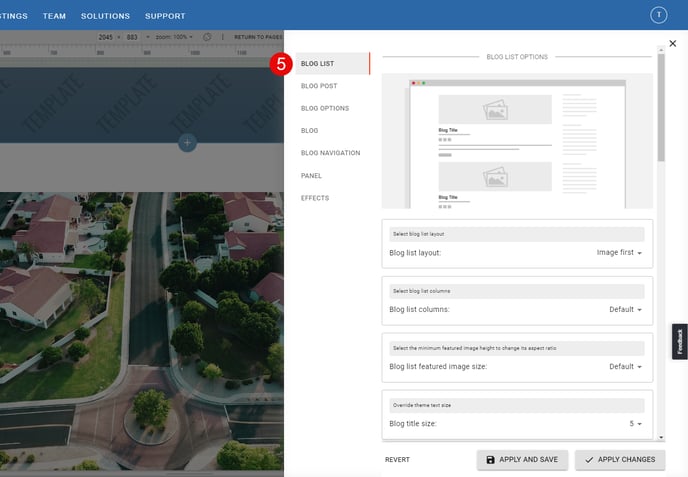
5 - Select the "Blog List" tab in the block editor:
6 - Under Blog List Options adjust the list view settings:
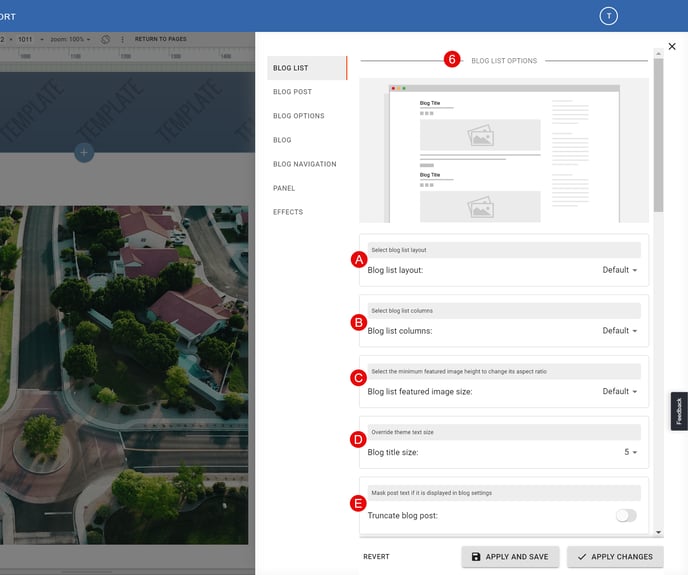
- A. Blog list layout: Select your desired blog list layout.
- B. Blog list columns: Select number of columns the blog list will display (Note: This will change responsively based on screen size of device).
- C. Blog list featured image size: Select the featured image size for the blog list view.
- D. Blog title size: Select the default title size for blog posts in list view.
- E. Truncate blog post: Select this option to hide long text (will make posts the same length in list view).
7 - Under Post Link Button Options adjust the button options:
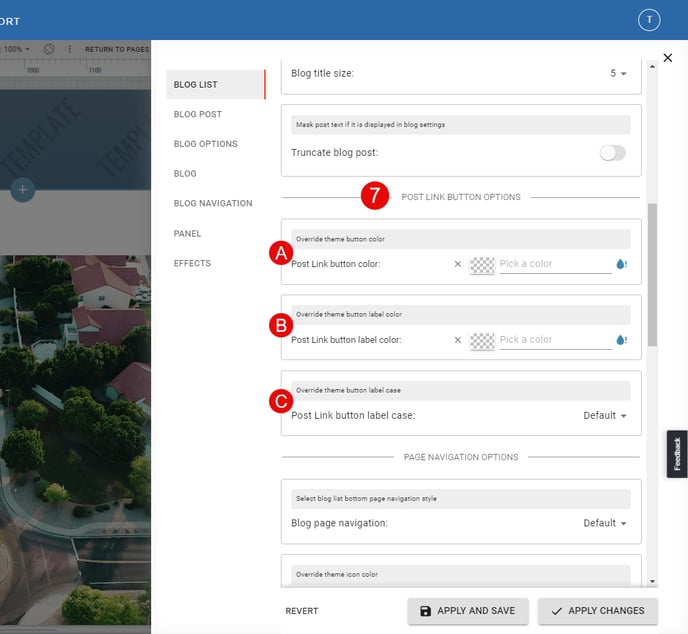
- A. Post link button Color: Adjust the color of the "Read More" button for each blog post.
- B. Post link button label color: Adjust the label color of the "Read More" button for each blog post.
- C. Post link button label case: Adjust the label case of the "Read More" button for each blog post.
8 - Under Page Navigation Options adjust page navigation options:
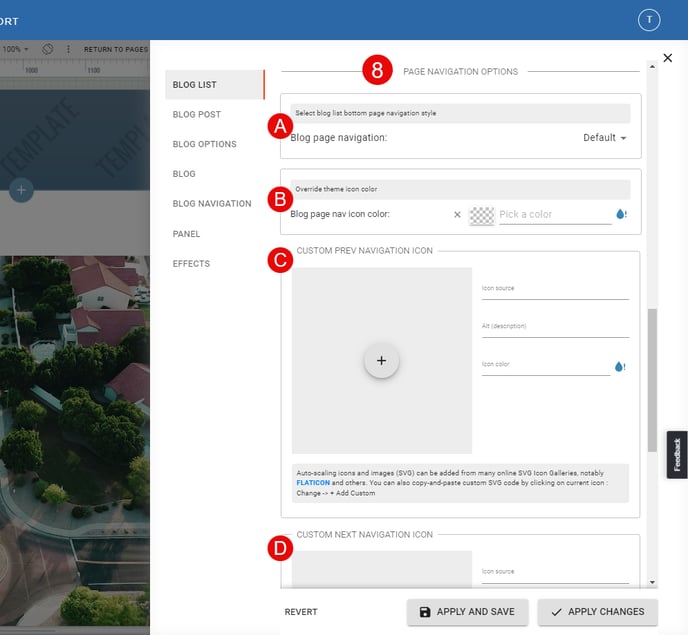
- A. Blog page navigation: Adjust the layout of the next/previous page buttons for the blog pages.
- B. Blog page nav icon color: Adjust the icon color for the next/previous page buttons for the blog pages.
- C. Custom previous navigation icon: Select a custom icon to be used for the previous page button.
- D. Custom next navigation icon: Select a custom icon to be used for the next page button.
9 - Click on "APPLY AND SAVE" in the bottom right hand corner to save your changes:
