![myrealpage-2022-logo-v3 (1).png]](https://knowledge.myrealpage.com/hs-fs/hubfs/myrealpage-2022-logo-v3%20(1).png?height=40&name=myrealpage-2022-logo-v3%20(1).png)
What’s new?
You can now choose how often each contact receives listing alerts from a saved search. This gives you more control over the communication experience for each client or lead.
Why use it?
Send timely alerts to active buyers, or reduce frequency for clients who do not need an email every time a new listing is available.
Choose the frequency that matches the client’s situation. For example, an active buyer may prefer alerts as soon as matching listings are available, while a long-term prospect may prefer a weekly or less frequent digest.
How to update a saved search alert?
-
Open the contact
In Private Office, go to Leads and select the client or lead whose alert settings you want to update.
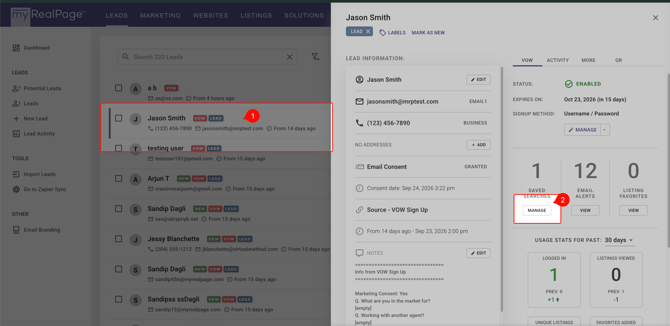
- Manage saved searches
In the contact panel, select Manage under Saved Searches.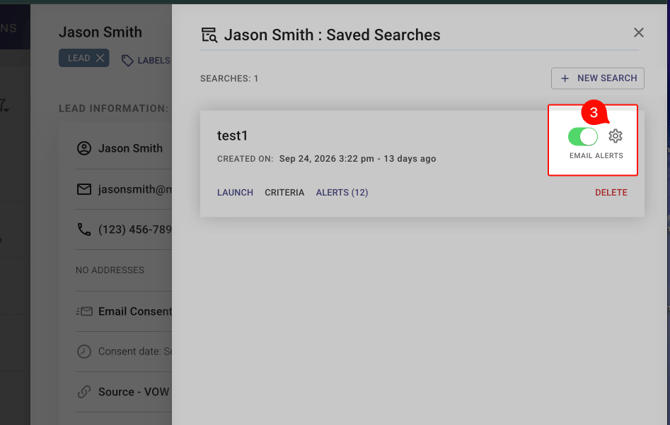
- Open alert settings
Find the saved search you want to change. Select the settings icon beside Email Alerts. - Choose the frequency
In Search Settings, use the Alert Frequency dropdown to select the preferred schedule. Leave Enable Alerts on, then close the panel when finished.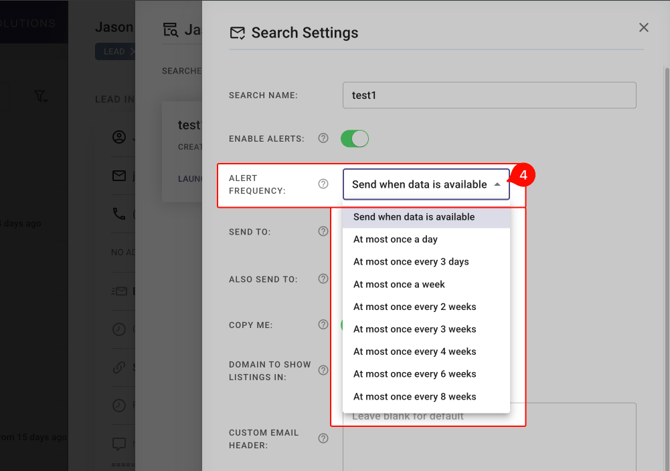
Available alert schedules
Choose from: send when data is available (this will trigger an email alert as soon as new data is available), once a day, every 3 days, weekly, every 2 weeks, every 3 weeks, every 4 weeks, every 6 weeks, or every 8 weeks.
Tip: The setting applies to the individual saved search. If a contact has more than one saved search, review each one separately.