![myrealpage-2022-logo-v3 (1).png]](https://knowledge.myrealpage.com/hs-fs/hubfs/myrealpage-2022-logo-v3%20(1).png?height=40&name=myrealpage-2022-logo-v3%20(1).png)
Before importing contacts into your database or sending a newsletter, run your list through NeverBounce. This helps remove invalid email addresses, protect your sender reputation, and reduce unnecessary bounces.
NeverBounce checks whether an email address can receive mail. It does not confirm that you have permission to email that person, so your list must still meet consent requirements before any campaign is sent.
What you will need- A CSV file containing your contacts
- An active NeverBounce account
- A list made up of contacts who have given you permission to receive marketing emails
Step 1: Export and prepare your list
Export your contacts as a CSV file from your current system.
Before uploading, review the file and make sure:
- Each contact has an email address in its own email column
- Duplicate rows have been removed where possible
- Columns are clearly labelled, such as First Name, Last Name, and Email
- You are only including contacts you are permitted to email
Save a copy of the original file before making any changes. This gives you a backup of the full list and its existing information.
View this article here on how to export your contacts from a variety of common sources.
Step 2: Upload the list to NeverBounce
- Log in to your NeverBounce account. If you haven't signed up yet, you can do so here.
- Select Bulk or Upload List.
- Upload your CSV file.
- Choose the column that contains the email addresses.
- Review the list details and start the verification process.
NeverBounce will process the list and sort each address by verification result. See screenshots below:
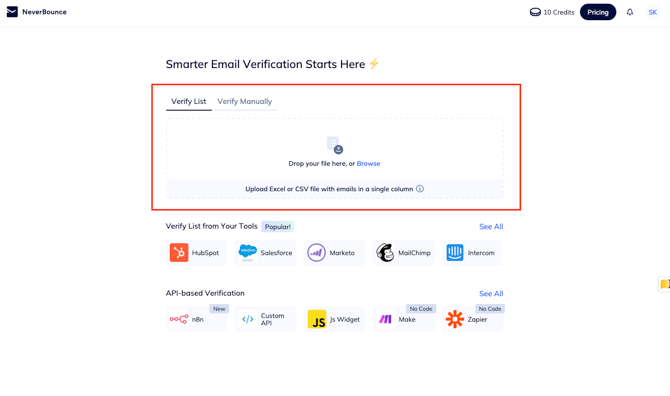
Upload your CSV File in the space above and it will begin the process. It only costs $0.01 per email to verify so this is a cost effective way of ensuring you protect your sender reputation.
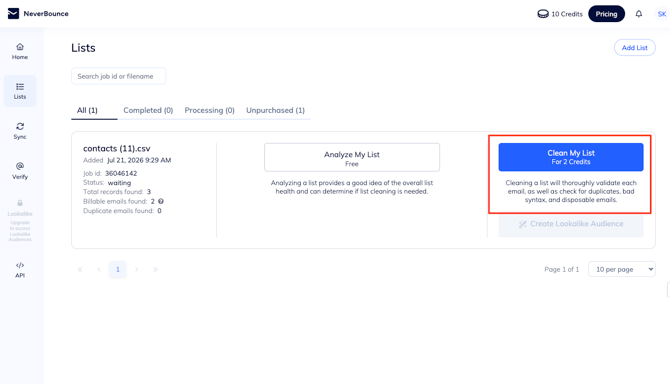
Each email counts as 1 credit. Once you clean your list you will have your new CSV file ready to upload back into myRealPage.
Step 3: Review the verification results
Once the list is complete, download the results file from NeverBounce. You will typically see categories such as:
| Result | Recommended action |
|---|---|
| Valid | Keep these contacts for your email list. |
| Invalid | Do not upload or send to these addresses. |
| Disposable | Exclude these addresses. They are temporary email addresses and are not suitable for ongoing marketing. |
| Accept All | Review separately. The receiving domain accepts all mail, so NeverBounce cannot confirm whether the individual inbox exists. |
| Unknown | Exclude or review separately. These addresses could not be confirmed. |
For most newsletter sends, use the Valid contacts as your clean sending list.
Step 4: Create your cleaned upload file
Open the NeverBounce results file and filter the results to show only contacts marked Valid.
Save those contacts as a new CSV file with a clear name, such as:
Newsletter Contacts - Cleaned - July 2026.csv
Keep the original export and the NeverBounce results file for your records. Do not overwrite your original list.
Step 5: Upload the cleaned list to your database
When importing the cleaned file:
- Import the new CSV into your contact database.
- Map each column to the correct contact field, especially Email, First Name, and Last Name.
- Apply a label or list name that identifies the source and date, such as Newsletter List - Cleaned July 2026.
- Check the import summary for duplicates or errors before completing the upload.
If these contacts already exist in your database, use the email address as the unique identifier so existing records are updated rather than duplicated.
NOTE: You can alternatively attach the cleaned CSV file to your newsletter if you plan to maintain your list outside of your myRealPage Dashboard.
Important reminders
- NeverBounce improves deliverability but does not create consent. Only email people who have opted in or where you have another valid basis to contact them.
- Do not send a campaign to Invalid, Disposable, or Unknown addresses.
- Treat Accept All addresses cautiously. If you choose to use them, keep them separate from your main send and monitor results closely.
- Clean your list before major campaigns and regularly remove contacts who repeatedly bounce or remain unengaged.
A clean list helps your emails reach real inboxes, keeps reporting more accurate, and helps protect the reputation of your sending domain.